How to Download an Entire Skool Course Without Losing Track
Download an entire Skool course in order with numbered folders, a lesson checklist, and verified MP4 files.
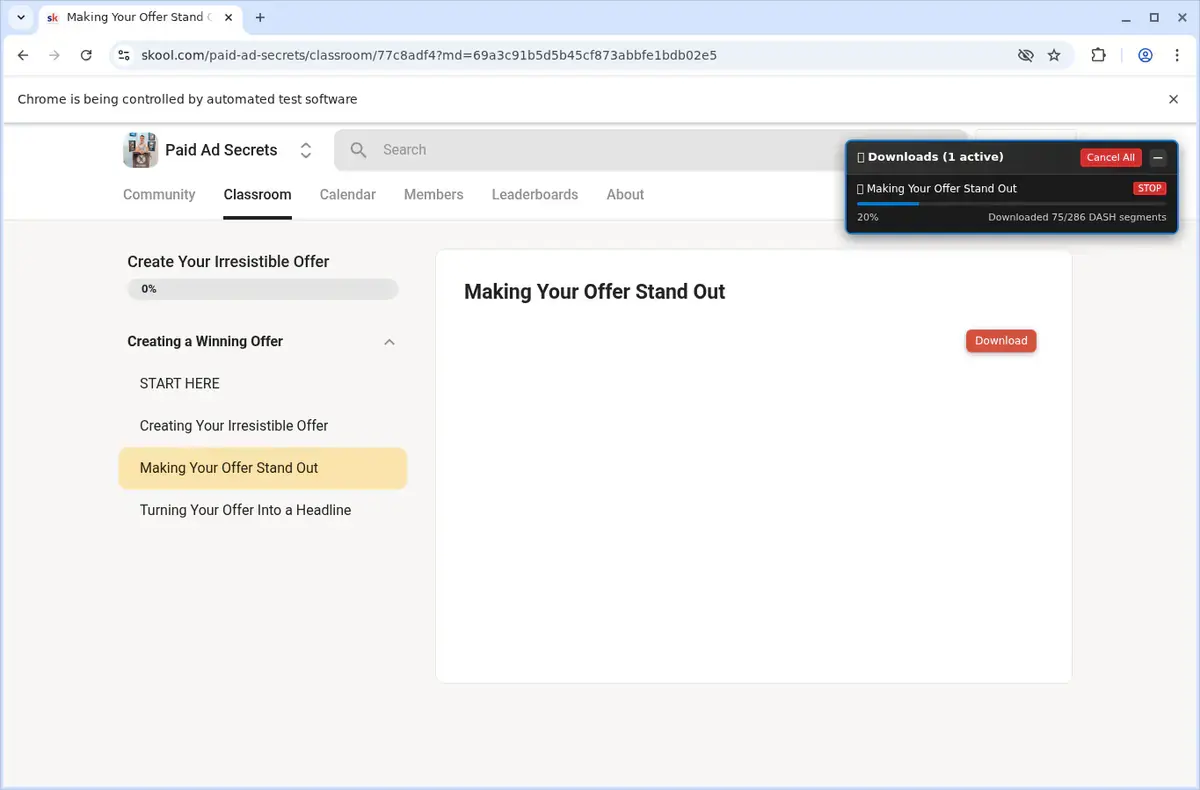
Inventory the classroom, create numbered module folders, and use the SERP Skool Video Downloader on each lesson in course order. The extension can run up to three downloads at once, but it does not copy the entire classroom automatically.
That distinction matters: a Skool course can mix videos, text lessons, links, worksheets, and different embedded players.
Course workflow at a glance
- Count the modules and lessons.
- Create one folder per module.
- Make a lesson checklist.
- Test one short video.
- Work in classroom order.
- Keep no more than three downloads active.
- Add lesson numbers to filenames.
- Verify every completed MP4.
- Compare the final folder with the classroom.
Build the folder structure first
Use leading numbers so Finder and File Explorer preserve the classroom order:
01-start-here
02-foundations
03-implementation
04-review
Inside each folder, name videos 01-welcome.mp4, 02-first-task.mp4, and so on.
| Classroom item | Offline action |
|---|---|
| Video lesson | Download and verify MP4 |
| Text lesson | Save notes separately if needed |
| Worksheet | Use the lesson’s own file link |
| External link | Add it to your course notes |
| Live event | Wait for the replay |
The extension is for video files, not a complete copy of every page element.
Make a checklist
Record module number, lesson number, title, video provider if visible, and status.
| Module | Lesson | Title | Status |
|---|---|---|---|
| 01 | 01 | Welcome | Checked |
| 01 | 02 | Setup | Downloading |
| 01 | 03 | First exercise | Not started |
Mark a lesson complete only after the file opens and its duration looks right.
Test one short lesson
Before starting a large course, prove the complete workflow on one short video:
- open the lesson;
- press play;
- choose 480p or 720p;
- download it;
- check picture, sound, and seeking;
- rename and move it into the correct folder.
If that works, installation, activation, page detection, and local saving are ready.
Work through lessons in order
Open one lesson at a time and confirm the detected title before downloading. When Skool uses an embedded Loom, Vimeo, YouTube, or Wistia player, the extension handles that supported provider from the lesson page.
Do not keep a dozen Skool tabs open. It becomes too easy to attach the wrong title or lesson number to a file.
Use the three-download queue carefully
Three simultaneous downloads can save time, but only when you can still identify them. A good pattern is to queue three lessons from the same module and wait for all three to finish before moving on.
For long 1080p lessons, one or two at a time may be faster and easier to verify.
Pick a consistent quality
Use 1080p for detailed screen recordings when available. Use 720p for a balance of clarity and storage. Choose a smaller option when you are building a large mobile library.
Not every lesson will offer the same resolutions. Record exceptions in your checklist instead of repeatedly retrying a quality that the source does not provide.
Verify every completion
Open each file and test the beginning, middle, end, and sound. Look for files that are unusually small or have a much shorter duration than the Skool lesson.
Move failed files into a needs-review folder rather than mixing them with complete lessons.
Resume later without starting over
Your checklist is the resume point. Find the last verified lesson and continue from the next row.
Do not rely only on filenames in the Downloads folder. A file can exist but still be incomplete. “Checked” should mean it actually played.
Handle community replays separately
Community calls are often chronological rather than part of the classroom structure. Store them in a separate community-replays folder and name them by date:
2026-07-30-weekly-call.mp4
This keeps the official course order clean. Use the Skool community video guide for replay checks.
Common course problems
| Problem | Fix |
|---|---|
| A lesson has no video | Mark it as text or resource-only |
| Wrong title detected | Close other tabs and reload the lesson |
| One provider fails | Note Loom, Vimeo, YouTube, Wistia, or Skool |
| Long file stalls | Retry one lower quality |
| Folder has a numbering gap | Compare it with the checklist |
| Duplicate file | Keep the verified copy and remove the extra |
The Skool downloader troubleshooting guide covers individual download failures.
Complete-course checklist
- Every classroom module has a folder.
- Every video lesson has a numbered row.
- Every downloaded file opens.
- Picture and sound are complete.
- Numbering has no unexplained gaps.
- Replays are stored separately.
- Failed items remain clearly marked.
Before committing to the whole classroom, run the SERP Skool Video Downloader on a native lesson, an embedded lesson and one longer file, then finalize your naming sheet.
Related products
Tools that directly support the workflow covered in this article.
Discover, select, and back up complete authorized Skool courses in their original order.
Save any Skool lesson as an MP4 and study anywhere, even without Wi-Fi.
Read more
View all posts →Download videos from Skool classrooms, course modules, community posts, and About pages with a browser extension.
Read articleLearn when yt-dlp works with a Skool video provider URL, why lesson links often fail, and which workflow fits each player.
Read articleDownload Whop videos from the lesson or post open in your browser. Find the video, scan the page, save the MP4, and check the result.
Read article