How to Download Videos From Skool Classrooms and Posts
Download videos from Skool classrooms, course modules, community posts, and About pages with a browser extension.
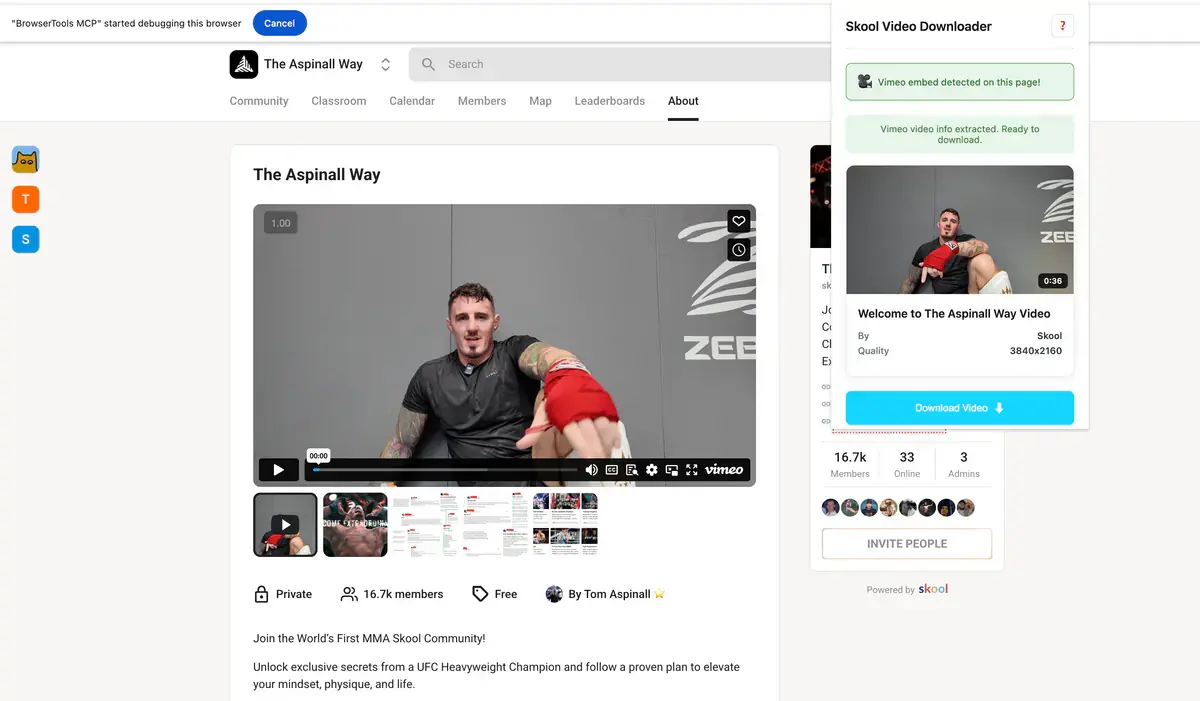
Open the exact Skool lesson or post, press play, open the SERP Skool Video Downloader, choose an available quality, and save the MP4 to your computer.
The extension works with videos uploaded directly to Skool as well as common players placed inside Skool lessons, including Loom, Vimeo, YouTube, and Wistia.
The quick method
- Sign in to Skool in a supported desktop browser.
- Open the lesson, module, community post, or About page.
- Press play on the selected video.
- Open the extension.
- Confirm the title or source shown.
- Choose a quality.
- Start the download.
- Open the finished MP4 and check it.
Use the page type that contains the video
| Skool page | What to open |
|---|---|
| Classroom | The individual lesson |
| Course module | The module containing the player |
| Community feed | The individual post, not the whole feed |
| Call replay | The finished replay post |
| About page | The page with the visible video |
| Live call | Wait for the replay to be published |
Opening one focused page helps the extension identify the intended player instead of a nearby preview.
Press play before opening the extension
Skool pages often load the lesson text before the video is fully ready. Press play and wait for the picture to move. Then open the extension.
If the popup finds nothing, close it, reload the lesson, play again, and reopen it. This small sequence fixes many first attempts.
Choose the quality
The listed choices depend on the original upload or embedded video provider. A detailed screen-share lesson benefits from 1080p when available. A talking-head discussion may be fine at 720p and use less storage.
The extension cannot add a higher resolution than the course video provides.
Download and verify
Finished files save as MP4. Open the browser’s Downloads page to follow progress, especially for a long lesson.
Check the saved file before moving to the next module:
- correct lesson title;
- picture and sound;
- complete beginning;
- working seek bar;
- complete ending;
- duration close to the Skool player.
For long lessons, test the beginning, middle, and end.
Native Skool videos and embedded players
Course creators can upload a video to Skool or place a player from another service inside a lesson. You do not have to inspect how the page is built. Press play and let the extension identify the supported player.
| Player shown in Skool | Extension support |
|---|---|
| Skool video | Supported |
| Loom | Supported |
| Vimeo | Supported |
| YouTube | Supported |
| Wistia | Supported |
| Unrecognized provider | May not be supported |
If only one provider repeatedly fails while the others work, record which provider it is when asking for help.
Download several lessons
The extension can manage up to three downloads at once, but a careful course workflow still starts with a list. Work in classroom order, use numbered filenames, and verify each file.
Do not treat “entire course” as one automatic button. Skool classes can contain text-only lessons, files, links, and videos from different providers. A reviewed lesson-by-lesson workflow keeps the collection understandable.
The complete Skool course download guide covers folders, numbering, and completeness checks.
Community posts and replays
Open a community post by itself before downloading. Confirm the author, date, caption, and replay duration. If the call is still live, wait until the finished recording appears.
See how to download Skool community videos for the focused workflow.
If no video appears
Confirm Skool itself can play the video under your current account. Then:
- reload the exact lesson;
- press play;
- wait for movement;
- close unrelated Skool tabs;
- open the extension again;
- try one modest quality.
Use the Skool downloader troubleshooting guide if the problem continues.
A reliable Skool routine
| Step | What to confirm |
|---|---|
| Open | Correct lesson or post |
| Play | Video works in Skool |
| Detect | Correct title or provider |
| Choose | Useful available quality |
| Save | Download appears in the browser |
| Verify | MP4 is complete |
Start the SERP Skool Video Downloader on one native lesson and one embedded lesson, then compare the resulting files and page detection before tackling the full classroom.
Related products
Tools that directly support the workflow covered in this article.
Discover, select, and back up complete authorized Skool courses in their original order.
Save any Skool lesson as an MP4 and study anywhere, even without Wi-Fi.
Read more
View all posts →Learn when yt-dlp works with a Skool video provider URL, why lesson links often fail, and which workflow fits each player.
Read articleDownload an entire Skool course in order with numbered folders, a lesson checklist, and verified MP4 files.
Read articleJul 30, 2026
How to Download Vimeo Videos From Any Page Type
Download Vimeo videos from public pages, private links, password-protected players, embeds, and review pages.
Read article