How to Download Whop Videos: A Simple Lesson-by-Lesson Guide
Download Whop videos from the lesson or post open in your browser. Find the video, scan the page, save the MP4, and check the result.
To download a Whop video, open the lesson or post where the video plays, start it once, then open Whop Downloader. The extension scans the current Whop page and lists the detected recording under Videos. Check that the title and preview match, select Download, and follow the result in the page's Downloads panel.
That is the short version. The details that matter are page scope, playback, and what is actually visible. The extension works with the Whop content loaded in your current browser tab. It does not need a copied page link, and it does not crawl course lessons you have not opened.
The quickest Whop video download method
| What is open in Whop | What to do |
|---|---|
| A course lesson with one video | Start the video, open the extension, and use the Videos tab |
| A lesson with several loaded videos | Scroll through them, select Rescan, then review the Videos count |
| A community post with a video | Open the individual post, start playback, and scan that page |
| A video with an on-player Download button | Use that button for the selected recording |
| A course outline with no player | Open the individual lesson first |
| A sign-in or checkout page | Return to the account and membership that can open the content |
| A lesson with a normal file attachment | Use the attachment supplied on the Whop page |
The page must show the actual content. A course cover, navigation screen, or copied URL does not give the extension a loaded video to find.
Before you begin
Use a desktop browser package included in the current v4.0.3 release: Chrome, Edge, Brave, Opera, Whale, or Yandex.
Then confirm:
- you are signed in to the correct Whop account
- the intended course or community is available
- the individual lesson or post is open
- the video frame appears on the page
- playback starts normally
- the extension is activated
New users can activate with an email address and one-time code. The trial includes three downloads and does not ask for a credit card.
Step 1: Open the exact Whop lesson
Whop courses are arranged into chapters and lessons. Open the lesson containing the recording you want rather than leaving the course overview on screen.
The lesson title is useful later, so note it before starting. If you are working through a longer course, also note the chapter and lesson number. That gives you a reliable filename even if several downloads finish out of order.
For community content, open the individual post or page where the video is visible. Avoid scanning a broad feed when your goal is one specific recording; a focused page makes the result easier to identify.
Step 2: Start the video
Select play and wait until the picture and sound begin. Some Whop videos do not fully load until playback starts. Opening the extension before that point can produce an empty Videos tab even though a player is visible.
You do not need to watch the entire recording. The goal is simply to make the active video available on the page.
If playback does not start:
- refresh the Whop lesson
- confirm the membership still opens it
- wait for the player controls to appear
- try playback again
- scan only after the video is working
Fix the player first. A downloader cannot confirm a recording that the page itself has not loaded.
Step 3: Scan the current page
Open Whop Downloader from the browser toolbar. The popup shows three separate content areas:
- Videos
- Images
- Text
The count above each tab tells you how many supported items were detected on the loaded page. Stay on Videos for this workflow.
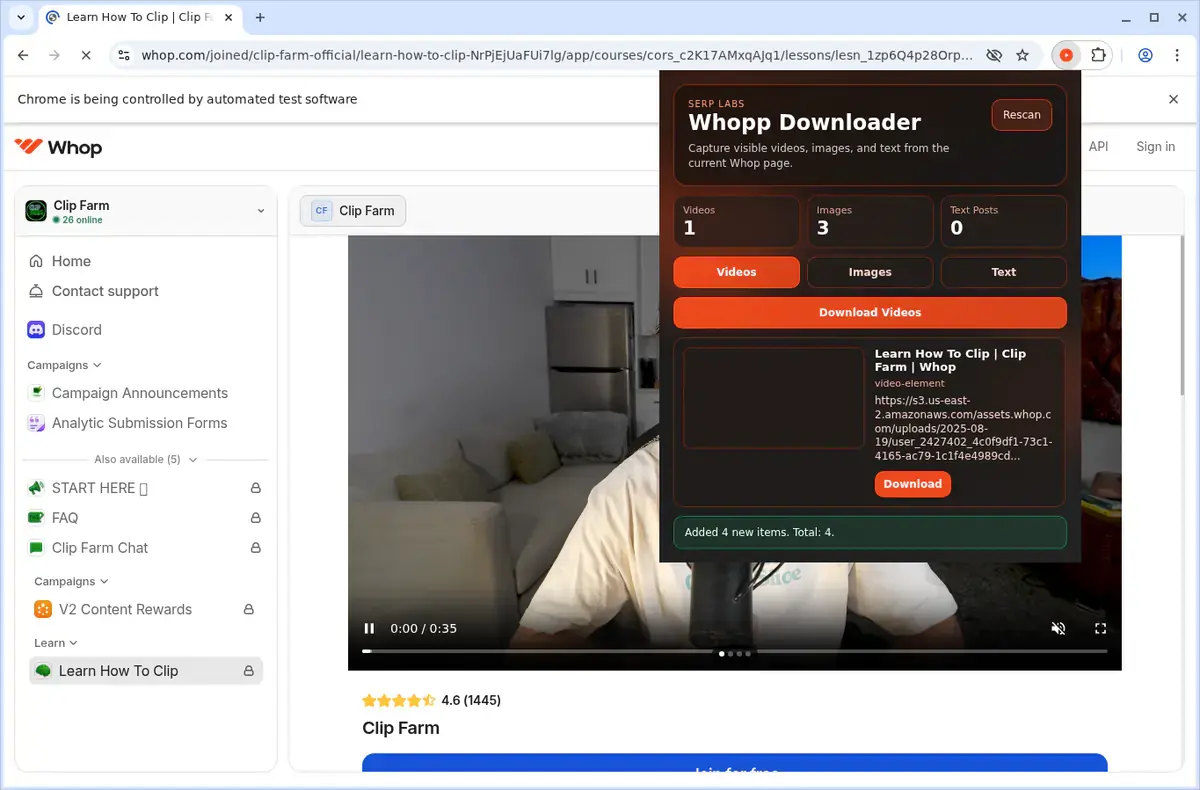
The popup in the screenshot has found one video and three images on the current lesson. Those items are separated, so saving the lesson video does not automatically export the images.
If the video is missing, close the popup, play the recording for a few seconds, and reopen it. Select Rescan after the content is visible.
Step 4: Confirm the correct recording
Before selecting Download, compare the result with the open page.
Check:
- the title or label
- the preview image
- the visible lesson
- the item count
- the source description shown on the result card
This check is especially important on a page containing several media items. A page header video, lesson recording, and embedded example may all appear as separate results.
If the list grew after you scrolled, review the newly added results rather than assuming the first item is always the intended lesson.
Step 5: Download the video
Select Download on the correct video card. On supported players, you may also see a Download button placed directly on the video.
The extension saves compatible streaming video as an MP4. A direct video file can keep a usable source extension, but MP4 is the normal result for a Whop lesson recording.
The on-page Downloads panel can show:
- queued work
- active progress
- completed downloads
- failed downloads
- cancelled downloads
Keep the Whop page open while the recording finishes. If you started the wrong item, cancel it from the Downloads panel and return to the correct result.
Step 6: Check the finished MP4
Do not move to the next lesson until the current file has been checked.
Open the completed file and test:
- the first few seconds
- a point near the middle
- the final section
- picture and sound together
- the displayed duration
A completed browser entry proves that a file was written. Playing the opening, middle, and end confirms that it is the lesson you expected and that the recording is usable.
Rename the file while the Whop lesson is still open. A clear pattern is:
01-01 Welcome.mp401-02 Account Setup.mp402-01 First Campaign.mp4
Chapter and lesson numbers keep the course order intact even when the page titles are similar.
Download several videos visible on one page
When a Whop page contains more than one loaded recording, the Videos tab can list several items. Select Download Videos to start the detected video results in that tab.
This is a visible-page action, not a whole-course crawler.
It includes videos the extension has found on the current page. It does not:
- open the next course lesson
- expand every chapter
- visit unopened community posts
- collect hidden or unloaded items
- combine images and text into the same video action
For a page that loads content as you scroll:
- scroll until the intended videos appear
- start playback where necessary
- open the extension
- select Rescan
- confirm the new Videos count
- review the cards
- select Download Videos
The button name changes with the active tab. Download Images handles the visible image results, while Download Text Posts handles the detected text results.
Download a complete Whop course without losing the lesson order
A reliable course workflow is manual and deliberate. The Whop course lesson workflow adds a chapter checklist and naming system:
- create a folder with the course name
- create one folder per chapter
- open the first lesson
- load and scan the page
- save the video
- test and rename it
- mark the lesson complete
- move to the next lesson
Keep a small checklist with four columns:
| Lesson | Video found | File checked | Final filename |
|---|---|---|---|
| 01-01 Welcome | Yes | Yes | 01-01 Welcome.mp4 |
| 01-02 Setup | Yes | Yes | 01-02 Setup.mp4 |
| 01-03 Resources | No video | — | — |
Not every Whop lesson is a video lesson. Whop's Courses app can also contain formatted text, attachments, PDFs, quizzes, and knowledge checks. Record “no video” when that is the correct result instead of repeatedly rescanning the page.
Keep videos, images, text, and attachments separate
Whop lessons can contain several kinds of content. Use the correct route for each one.
| Content | Best route |
|---|---|
| Supported lesson or post video | Videos tab or on-player Download button |
| Images loaded on the page | Images tab |
| Visible lesson or post text | Text tab |
| Creator-supplied attachment | Normal attachment control on the Whop lesson |
| PDF lesson | Whop's visible PDF or file control |
| Quiz or knowledge check | Use it inside the Whop course |
| Unopened lesson | Open it manually before scanning |
The Text tab creates a plain text file from detected page content. It is not a course-progress export, quiz backup, or copy of every comment in a community.
Likewise, the extension does not promise arbitrary PDFs or lesson attachments. When a creator supplied a normal file action, use that action directly.
Download videos from member-only Whop pages
The extension uses the Whop page already open in your browser. That makes the signed-in session important.
It does not:
- join a Whop product
- restore an expired membership
- open a locked lesson
- reveal content from another account
- turn a member page into a public link
If a lesson redirects to checkout or says the content is unavailable, fix the Whop account or membership first. If the lesson opens and the recording plays, scan it in that same browser profile.
Do not copy the page address into a separate public downloader and expect it to inherit your membership. The working context is the loaded Whop page, not the URL by itself.
Fix the most common problems
The Videos count is zero
Open the individual lesson, start playback, wait for the picture, then select Rescan.
The wrong video appears
Open a more focused lesson or post page. Compare the result title and preview before downloading.
Scrolling revealed more items
Select Rescan. The popup adds newly visible supported content to the current page results.
The download is stuck
Keep the Whop tab open, check the Downloads panel, cancel the stale item, confirm playback still works, and retry one video.
The file is missing
Open the browser's Downloads list and check the configured download location. The current release uses normal browser download handling and does not promise a dedicated Whop folder.
The extension opens on another website
Return to a page under whop.com, then scan again. The current release is configured for Whop pages and their subdomains.
The dependable Whop routine
Open one lesson, start the recording, scan the current page, confirm the correct Videos result, and save the file. Test and rename the MP4 before moving to the next lesson.
Use Rescan for content that loads after scrolling and use the separate Images or Text tabs only when you want those file types. Whop Downloader works best as a clear current-page tool: it handles what is loaded in front of you without turning the process into a technical project.
Related products
Tools that directly support the workflow covered in this article.
Save Whop course videos as MP4 files and watch them offline—perfect for travel, commutes, or focused study sessions.
Read more
View all posts →Jul 30, 2026
How to Download Vimeo Videos From Any Page Type
Download Vimeo videos from public pages, private links, password-protected players, embeds, and review pages.
Read articleOct 23, 2025
How to Download MP4 Videos
File Extensions: .mp4, .m4v, .m4a MIME Types: video/mp4, audio/mp4 Container: Multimedia container Codecs: H.264, H.265, AAC, and many others
Read articleOct 23, 2025
How to Download M3U8 and HLS Videos as MP4
Download a compatible M3U8 or HLS video as MP4 by starting playback, confirming the detected stream, choosing a quality, and using Save As.
Read article