How to Download M3U8 and HLS Videos as MP4
Download a compatible M3U8 or HLS video as MP4 by starting playback, confirming the detected stream, choosing a quality, and using Save As.
To download a compatible M3U8 or HLS video, open the exact webpage containing the player, start the intended video, and launch M3U8 Stream Downloader from your browser toolbar. Confirm the detected title, thumbnail, and duration, choose an available quality when shown, select Download Video, follow progress, and use Save As for the finished MP4.
You do not need to copy a playlist address or manually inspect the page. The extension detects compatible HLS playback from the current tab after the video starts.
The quickest M3U8 download workflow
| Step | What to do | What should happen |
|---|---|---|
| 1 | Open the exact page containing the video | The intended player is visible |
| 2 | Complete the website’s normal login when required | The video becomes available |
| 3 | Press play | The HLS stream begins loading |
| 4 | Open M3U8 Stream Downloader | A detected-video card appears |
| 5 | Check title, thumbnail, and duration | You confirm the correct video |
| 6 | Choose an available quality when shown | One usable stream variant is selected |
| 7 | Select Download Video | The on-page Downloads panel opens |
| 8 | Keep the video page open | Progress can continue |
| 9 | Complete Save As | You choose the MP4 destination |
| 10 | Open the file | Picture, audio, duration, and ending are verified |
If the popup does not detect anything, return to the player, press play, wait a few seconds, and reopen the extension.
What M3U8 and HLS mean
HLS is a way websites deliver video in small pieces instead of one ordinary file. An M3U8 playlist tells the player which pieces to request and in what order.
A stream can have:
- one available video version;
- several quality variants;
- a completed on-demand video;
- a live playlist that changes while an event continues;
- encryption the current extension does not support.
For a compatible completed stream, the extension prepares the selected video as a single MP4.
You do not need to understand the playlist structure to use the customer workflow. Start the video, confirm the detected result, and download the selected option.
M3U8 is not a video website
M3U8 is a playlist format used by many unrelated websites and players. There is no single “M3U8 site” to open.
Start from the real webpage containing the video:
- a webinar replay;
- a course lesson;
- a product demonstration;
- a news clip;
- an event replay;
- a member portal;
- a documentation page;
- another website with compatible HLS playback.
The extension works with the selected compatible stream in the current page. It does not claim support for every website or every player.
Open the exact video page
Navigate until the intended player is visible.
Avoid starting from:
- a website homepage;
- a search results page;
- a course index;
- a dashboard that lists several recordings;
- a message containing only a thumbnail;
- another tab where the video is not loaded.
If the player appears inside a lesson, tab, accordion, carousel, or modal, open that section and keep it open.
Complete normal page access
When the website requires an account, sign in normally before opening the extension.
The extension can work with a compatible stream that the current browser page already loads and plays. It does not:
- sign in for you;
- open a lesson your account cannot view;
- guess a page password;
- restore a removed video;
- replace the website’s access controls.
Once the player works, continue with playback-first detection.
The dedicated workflow is How to Download an M3U8 Video from a Signed-In Page.
Press play before opening the extension
Many video pages do not load their HLS playback until the user starts the player.
Press play and wait until:
- the poster changes to moving video;
- the timer advances;
- the intended recording is visible;
- the loading indicator disappears;
- audio begins when expected.
Then open the extension.
If several players are present, start only the exact video you want. This makes the detected card easier to verify.
Open the toolbar popup
Select Downloader for M3U8 from your browser toolbar.
The popup can show:
- detected title;
- thumbnail;
- duration;
- quality choices;
- Download Video.
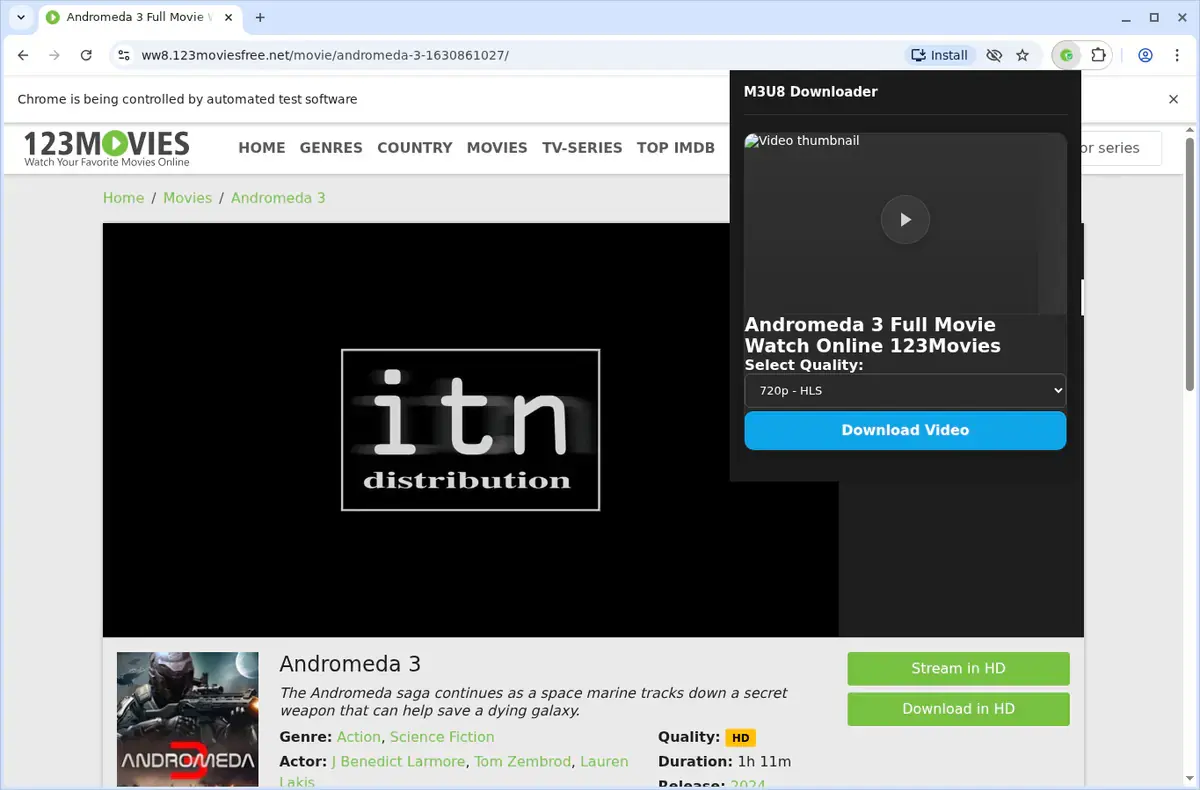
Compare the card with the player.
| Popup result | Meaning | Next action |
|---|---|---|
| Correct title, image, and duration | Intended video is ready | Continue |
| Generic title but correct image | Page supplied weak naming information | Verify and rename the MP4 later |
| Wrong thumbnail | Another player was selected | Return to the intended video |
| Wrong duration | Detected item may be different | Start the intended player again |
| No video appears | Playback is not ready or stream is incompatible | Press play and retry once |
| Activation screen appears | Trial is not active in this installation | Complete email-code activation |
Do not start a download when the detected card clearly belongs to a different video.
Choose an available quality
Some HLS streams provide several variants. The popup lists usable choices available for the selected stream.
The screenshot shows a detected 720p HLS choice. That does not mean every video offers 720p or the same menu.
Choose:
- the strongest available option for screen recordings with small text;
- a smaller available option when storage matters more;
- one representative test before saving a long series.
If the selected video provides only one usable choice, continue with that option. A missing list of several resolutions is not automatically a failure.
The extension cannot create a resolution the selected stream does not provide.
For a focused explanation, see M3U8 Video Quality and Stream Variants Explained.
Start the MP4 download
Select Download Video after confirming the detected result.
The on-page Downloads panel can show:
- the active filename;
- percentage complete;
- current status;
- STOP for the active item;
- Cancel All when active jobs are present.
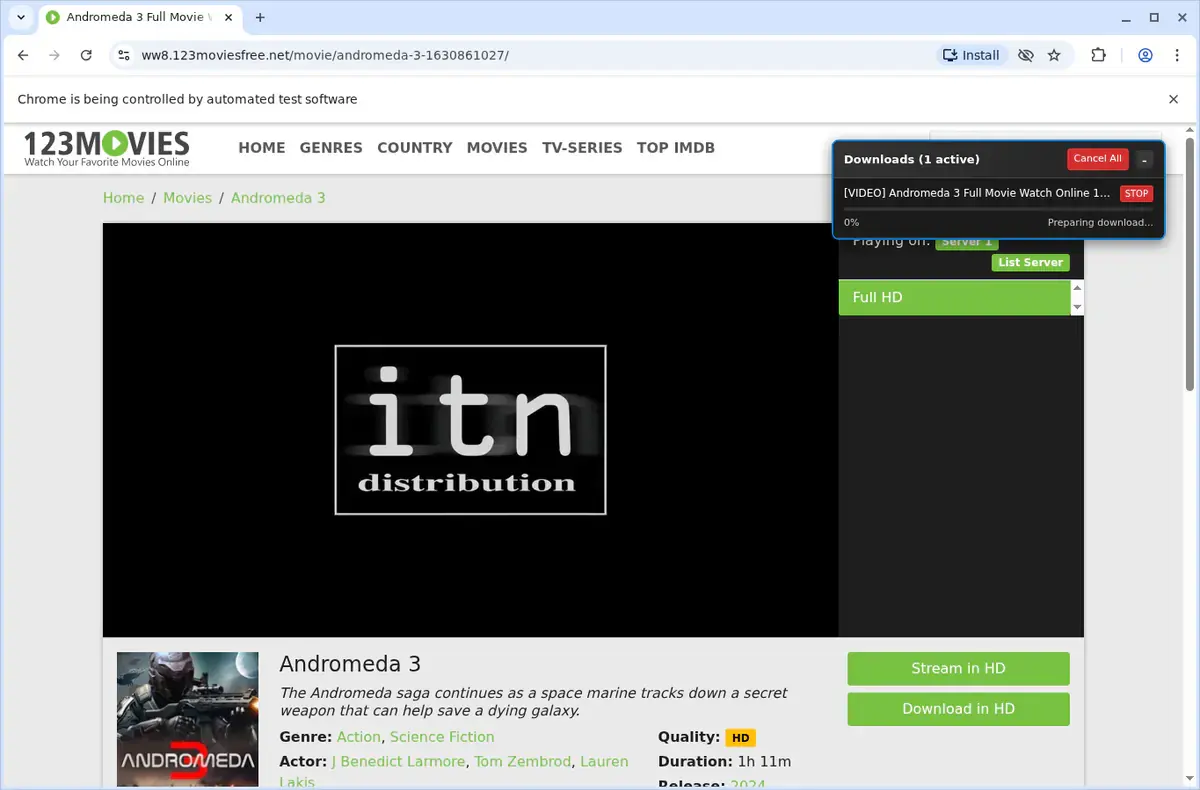
Keep the browser and video page open. Do not move to another lesson or close a modal containing the player while the job is active.
What happens before Save As
An M3U8 playlist points to the pieces needed for playback. The extension gathers the compatible selected stream and prepares one MP4.
The progress panel may move through visible stages such as:
- preparing;
- downloading;
- processing;
- saving.
Let the active job reach the save step. Starting several duplicate copies while the first is progressing makes troubleshooting harder.
Use Save As
When the MP4 is ready, the browser opens Save As.
- choose the destination folder;
- review the filename;
- keep the
.mp4extension; - confirm Save;
- wait for the browser to finish.
Save As controls the destination for every MP4; there is no automatic M3U8 folder.
If the Save As window opens behind the browser, bring it forward instead of starting another download.
Verify the finished MP4
Open the file before leaving the source page.
| Check | Pass condition |
|---|---|
| Opening | Correct video begins |
| Picture | Frames display normally |
| Audio | Sound is present and synchronized |
| Middle | Playback continues beyond the opening |
| Ending | Expected ending is included |
| Duration | Closely matches the webpage player |
| Detail | Important text remains readable |
| Filename | Describes the verified video |
If the popup used a generic title, rename the MP4 only after confirming its content.
Download an M3U8 video from a website
The address bar does not need to show .m3u8.
Use the normal page:
- open the webpage containing the player;
- reveal the exact video section;
- press play;
- open the extension;
- confirm the detected result;
- download and verify the MP4.
The extension detects compatible HLS playback behind the page player.
See How to Download an M3U8 Video from a Website for page layouts with several players, tabs, and embedded sections.
What if the player address starts with blob?
A blob: address is a temporary browser reference, not a normal public video link you can reliably paste elsewhere.
Do not copy the blob address.
Instead:
- stay on the original webpage;
- press play;
- open M3U8 Stream Downloader;
- let it detect compatible HLS playback from the current page;
- verify the detected card.
This product does not claim a separate recording mode for every blob video. It works when the page’s underlying playback exposes a compatible stream to its detection workflow.
Continue with How to Download a Blob Video Using Its M3U8 Stream.
M3U8 to MP4 in the browser
The extension’s verified compatible output is MP4.
The customer workflow does not require:
- a terminal;
- manual playlist editing;
- copying individual video pieces;
- moving the video through a separate converter.
Open the page, start playback, select the detected compatible stream, and save the finished MP4.
For naming and file verification, use How to Convert M3U8 to MP4 in Your Browser.
Signed-in video pages
When a website requires a login:
- sign in normally;
- open the exact video;
- confirm the player works;
- press play;
- use the extension in that same tab;
- keep the page open until Save As.
The extension does not transfer the login to another website. That is one reason a current-page extension and a public paste-link tool are different workflows.
Encrypted HLS is not supported
The current v4.0.2 package explicitly rejects encrypted HLS playlists.
If the player works but the extension reports that the HLS stream is encrypted, retrying with the same product will not change that boundary.
Do not confuse:
- a signed-in page the current browser can already play;
- an encrypted HLS playlist the extension rejects.
A page can require login without using an unsupported encrypted playlist, and an encrypted playlist can still play in the website’s own player.
Live streams and event replays
HLS can deliver live broadcasts, event playlists, and completed on-demand videos. Those are properties of HLS itself.
The current product is verified for compatible detected playlists and selected video downloads. It does not claim continuous recording of an ongoing live event from its beginning through its future end.
For a complete beginning-to-end file, start from the finished replay.
Do not describe general HLS live capability as a feature of this extension.
Separate subtitles and alternate audio
HLS can describe subtitles and alternate audio renditions, but the current product does not claim separate subtitle files or alternate-audio exports.
The verified result is the selected compatible video MP4.
Check the finished file itself for the picture and audio you expected. Do not promise that every extra track shown by a website will be included.
Downloading several videos
Open and confirm each video separately.
For a series:
- list the videos in order;
- open the first page;
- press play;
- confirm the detected card;
- download and verify the MP4;
- rename it with a numeric prefix;
- move to the next page.
Example:
01 Welcome.mp4
02 Product Walkthrough.mp4
03 Reporting Demo.mp4
The product does not claim automatic whole-page, whole-site, or playlist export.
If no stream is detected
Check:
- exact video page is open;
- normal page access is complete;
- player is visible;
- intended video has started;
- supported desktop browser is in use;
- extension is enabled;
- popup was reopened after playback.
Refresh the original page once, start the video again, and retry.
If the stream remains absent, the page may use a different delivery method or an incompatible player.
If the wrong stream is detected
Pages with several videos need deliberate selection.
- pause other players;
- close unrelated video modals;
- open the intended section;
- press play;
- reopen the popup;
- compare title, thumbnail, and duration.
Do not trust a generic title by itself.
If there is only one quality
This is normal when the selected stream exposes one usable variant.
Continue when:
- the detected video is correct;
- the available choice is selected;
- Download Video is active.
The extension does not manufacture additional resolutions.
If progress stops
Keep the video page open.
If the percentage remains unchanged:
- select STOP for the incomplete item;
- return to the player;
- confirm it still plays;
- press play;
- reopen the extension;
- start one fresh job.
The current package retries temporary delivery failures during a compatible download, but it cannot restore video pieces that the website no longer provides.
If Save As never appears
Check the Downloads panel first.
| Panel state | What to do |
|---|---|
| Percentage is moving | Let the job continue |
| Progress is stopped | Stop it and retry from playback |
| Saving or complete | Look for Save As behind the browser |
| No active item | Press play and start one fresh job |
Do not create several duplicate jobs while the original is still active.
If the MP4 ends early
Compare its duration with the website player.
If the ending is missing:
- return to the playable page;
- stop any incomplete item;
- press play;
- confirm the detected video;
- start one fresh download;
- keep the page open;
- verify the replacement ending.
For a full failure map, see M3U8 Downloader Not Working? Fix Every Common Issue.
Current browser packages
The current v4.0.2 release, published June 19, 2026, includes:
| Browser | Package |
|---|---|
| Chrome | m3u8-downloader-chrome.zip |
| Edge | m3u8-downloader-edge.zip |
| Brave | m3u8-downloader-brave.zip |
| Opera | m3u8-downloader-opera.zip |
| Whale | m3u8-downloader-whale.zip |
| Yandex | m3u8-downloader-yandex.zip |
| Firefox | No package |
| Safari | No package |
| Mobile browser | No package |
Use the package named for your desktop browser.
Trial and activation
The extension includes three trial downloads with no credit card required.
Activate it:
- enter your email address;
- select Send verification code;
- enter the newest code;
- select Verify & Continue;
- return to the video page;
- press play;
- test one short compatible video.
Unlimited downloads use the paid subscription.
M3U8 extension vs online downloader
| Situation | Browser extension | Public paste-link website |
|---|---|---|
| Video plays in current page | Strong starting point | Requires an accepted link |
| Signed-in page | Can use compatible current-page playback | Separate site does not share that page state |
| Quality choices | Shown for selected compatible stream | Depends on website |
| Progress | On-page panel with Stop controls | Depends on website |
| Save | Browser Save As | Website’s own result flow |
| Encrypted HLS | Not supported | Depends on website, never assume |
Use an online tool only when you have a simple public link that the specific website accepts.
For the focused comparison, see M3U8 Extension vs Online Downloader.
Frequently asked questions
What is an M3U8 file?
It is a playlist used by HLS playback. It points the player toward the media needed for the stream rather than being an ordinary standalone video.
Can the extension save M3U8 as MP4?
Yes, for a compatible detected stream. Start playback, select an available quality, and save the finished MP4.
Do I need to find the M3U8 address?
No. Use the webpage where the video plays and let the extension detect compatible HLS playback after you press play.
Why is there only one quality?
The selected stream exposes one usable choice. The extension cannot create additional variants.
Can it download a blob video?
It can work when the page behind the blob player exposes compatible HLS playback. Stay on the original page and start the player instead of copying the blob address.
Does it work on signed-in pages?
It can work when the current signed-in page already loads and plays the compatible stream. It does not sign in or open inaccessible content.
Does it support encrypted HLS?
No. The current package rejects encrypted HLS playlists.
Can it record a live stream?
The current product does not claim continuous live-event recording. Use a completed compatible replay when you need a full beginning-to-end file.
Does it save subtitles separately?
No separate subtitle or alternate-audio output is claimed.
Which browsers are supported?
The current release ships Chrome, Edge, Brave, Opera, Whale, and Yandex desktop packages. It does not ship Firefox, Safari, or mobile-browser packages.
Download the M3U8 video
Open the exact webpage, complete its normal access, and press play. Launch M3U8 Stream Downloader, confirm the detected title, thumbnail, and duration, choose an available quality, and select Download Video. Keep the page open, follow progress, complete Save As, and verify the MP4.
Related products
Tools that directly support the workflow covered in this article.
Save HLS streams as MP4 directly from your browser without ffmpeg or command-line tools.
Download MP4 videos from any webpage with a single click—no source digging required.
Read more
View all posts →Download videos from Skool classrooms, course modules, community posts, and About pages with a browser extension.
Read articleJul 30, 2026
How to Download a Password-Protected Vimeo Video
Download a password-protected Vimeo video after unlocking it in the player, choosing a quality, and verifying the file.
Read articleJul 30, 2026
How to Download Vimeo Videos From Any Page Type
Download Vimeo videos from public pages, private links, password-protected players, embeds, and review pages.
Read article