How to Download Videos From Circle
Download videos from Circle lessons and posts, including supported native and embedded players, using a clear current-page browser workflow.
To download a video from Circle, open the individual post or course lesson, start the player if it has not loaded yet, then open Circle Downloader and choose Rescan. Open the Videos tab, confirm the result belongs to the page you are viewing, and select Download.
That workflow covers supported Circle native videos as well as compatible Tella, Loom, Vimeo, YouTube, and Wistia players embedded inside Circle. The extension works from the Circle page already open in your desktop browser; you do not have to extract a media address or move your signed-in page into a public downloader website.
The quickest Circle video download steps
- Open the exact Circle post or lesson containing the video.
- Wait for the page and player to finish loading.
- Start the video for a few seconds if the player is still showing a blank frame or cover.
- Open Circle Downloader from the browser toolbar.
- Choose Rescan.
- Select the Videos tab.
- Check that the detected video matches the lesson or post.
- Use the result's Download action.
- Open the finished file from your browser's Downloads list and test it.
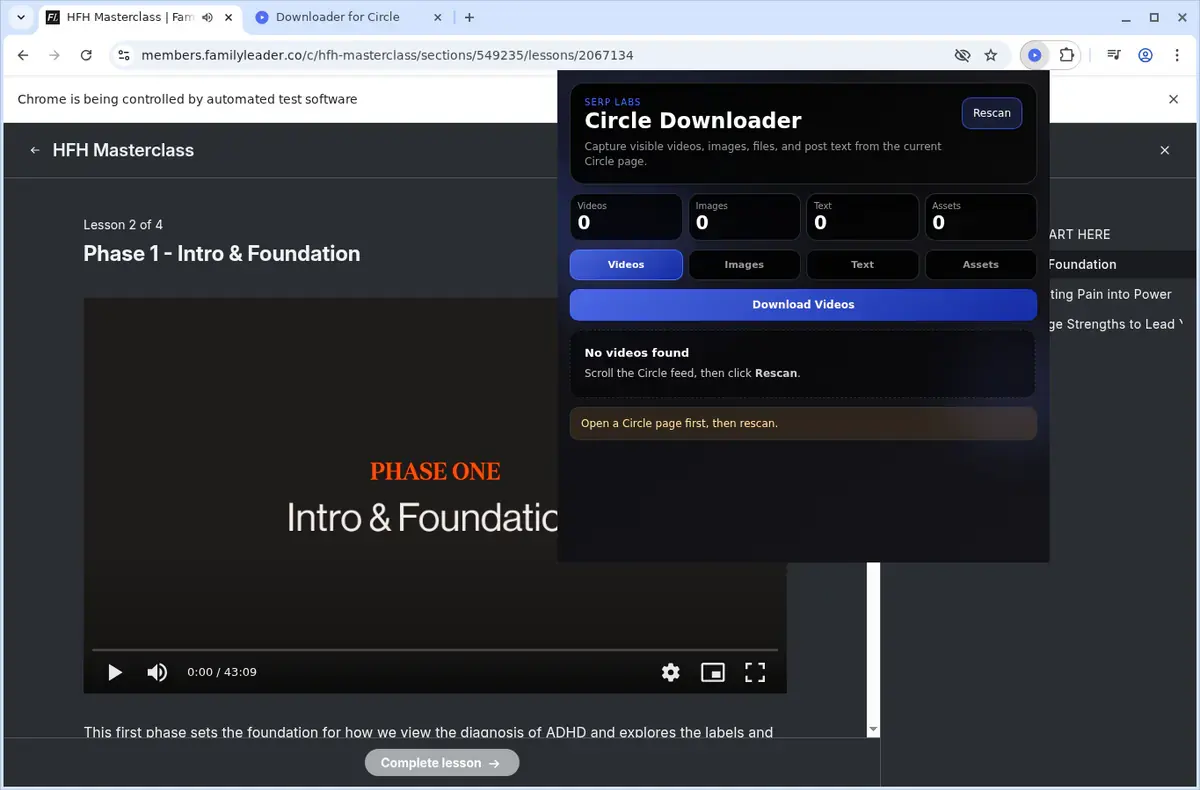
The current extension separates results into four types. Videos is the right tab for this task. Images, Text, and Assets are for other material found on the same page, so an empty Videos tab does not necessarily mean the scan failed.
Start from the individual lesson or post
A Circle course overview is useful for navigation, but it is usually not the page that loads every lesson video. Open the individual lesson before scanning.
Circle's own course documentation explains that lessons can contain video, images, documents, and embeds. That variety is why the extension scans the loaded page instead of assuming every lesson uses one identical player.
Use this page check before opening the extension:
| What is open | What to do next |
|---|---|
| Individual lesson with a visible player | Start the player, then scan |
| Circle post containing a video | Scroll to the player, let it load, then scan |
| Course curriculum or section list | Open the lesson containing the video first |
| Lesson with several media blocks | Reveal and start the intended player before rescanning |
| Sign-in or access-request page | Sign in with an account that can open the lesson |
| Player error or unavailable message | Restore normal playback before trying to download |
Circle Downloader does not click through a curriculum or open every lesson automatically. Treat the course sidebar as your route between lessons: open one, download what you need, verify the file, then continue to the next lesson.
For a course-specific routine, see How to Download Circle Course Lesson Videos.
Let the Circle player load before scanning
Some players expose enough information as soon as the page opens. Others finish loading only after you scroll them into view or press Play.
Use a simple sequence:
- scroll until the complete player is visible
- wait for its title, cover image, or controls to appear
- press Play and confirm the picture begins
- pause if you do not want the video to continue
- open the extension and select Rescan
You do not need to watch the entire recording. The point is to make sure the player on the page has initialized before the extension checks for it.
If you installed the extension while the Circle lesson was already open, reload that tab once. The page needs a fresh load before the newly installed extension can scan it reliably.
Download Circle native and embedded videos
Circle lessons do not all use the same video host. A creator may upload video through Circle or place an external player inside the lesson.
The current Circle Downloader release recognizes these supported video types on Circle pages:
| Player on the Circle page | Starting action |
|---|---|
| Circle native video | Start the lesson player, then Rescan |
| Tella embed | Let the Tella player load, then Rescan |
| Loom embed | Start the Loom recording, then Rescan |
| Vimeo embed | Start the Vimeo player, then Rescan |
| YouTube embed | Let the YouTube player initialize, then Rescan |
| Wistia embed | Start or reveal the Wistia player, then Rescan |
You do not need to identify the host before your first attempt. Open the Videos tab and use the title, filename, or page context to check the result. Knowing the host becomes useful only when you are troubleshooting an empty result.
If the player is embedded, stay on the Circle lesson page where it already works. The embedded Circle video guide covers each supported player and pages containing more than one embed.
Understand Rescan and Shift+Rescan
Rescan checks the current Circle page again and adds newly found content to the existing result list. Use it after you:
- start a video
- scroll farther down a post
- expand a collapsed lesson section
- switch to another lesson in a layout that updates without a full reload
- reveal an embed that initially showed only a cover
This makes ordinary rescanning additive. If one result was found before and a second player appears later, the new scan can keep the first item and add the second.
Hold Shift while choosing Rescan when you want to clear the current results and scan the loaded page from scratch. A fresh scan is helpful after moving to a different lesson when the popup still contains results from the previous page state.
Neither action crawls unopened lessons. Rescan means “check this page again,” not “search the complete course.”
Download one video or several visible results
Each detected result has its own Download action. Use that when you want one video and need to confirm exactly what will be saved.
If the current page genuinely contains several supported videos, the group action in the Videos tab can work through those displayed results. It is best to test one file first:
- download the first intended result
- open the completed file
- check the beginning, middle, and end
- confirm the picture and sound
- return to the Videos tab for the remaining visible items
The group action applies to results detected on the current page and in the selected tab. It does not turn a curriculum containing twenty unopened lessons into twenty video results.
For a precise explanation of selected-tab downloads, see How to Download Multiple Items From One Circle Page.
What else can the extension find?
The same Circle lesson may contain a hero image, explanatory text, a PDF workbook, and a video. The popup keeps those items separate so the video list does not become a mixture of unrelated files.
| Result tab | What it is for | Typical output |
|---|---|---|
| Videos | Supported native and embedded players | A local video file from the compatible player |
| Images | Images detected on the current page | JPG, PNG, WebP, GIF, or the format the source provides |
| Text | Detected post or lesson copy | Plain TXT |
| Assets | Linked lesson files and attachments | The source filename or recognizable document extension |
If you want the lesson workbook as well as the recording, switch to Assets after finishing the video. For page copy, use Text. You do not need to rerun a video workflow for every content type.
The dedicated guides explain how to download Circle files and attachments and how to export Circle post or lesson text.
Download from a member-only Circle community
Open the Circle community in the browser profile where you are already signed in. Navigate normally to a post or lesson your account can view, then scan that loaded page.
The extension uses the current browser context; it is not a separate Circle login form. If the page redirects to Sign in, Join, Request access, or an upgrade screen, resolve that in Circle first. A successful scan cannot create access that the current account does not have.
This boundary also matters for embeds. The outer Circle lesson may load while an embedded recording still displays its own password, account, or unavailable state. Make the embedded player playable on the page before selecting Rescan.
Where the finished video goes
The download uses your browser's normal download system. Look in the browser's Downloads list and its configured download location.
The current extension does not promise a special Circle folder or a manual quality menu. The result depends on the compatible video source loaded by the page. Once the file finishes:
- open it in your usual player
- listen for sound
- jump close to the end
- compare it with the Circle lesson
- rename it if you want a course-specific naming scheme
For a multi-lesson course, a simple folder structure such as Course name / Section / Lesson is easier to maintain than relying on browser download order alone.
Fix an empty Videos tab
The popup says to open a Circle page
Make sure the active tab is the Circle lesson itself. The extension will not scan a search result, a copied link in a notes app, or an unrelated browser tab.
The video plays but no result appears
Scroll the player fully into view, start it, wait a few seconds, and select Rescan. Reload the page once if the extension was installed after the lesson opened.
The result is in a different tab
Check that Videos is selected. A lesson image appears under Images and a PDF appears under Assets; those results do not populate Videos.
An embedded player asks for access
Open the player normally using the account, link, or password supplied for it. The extension can detect a compatible player that loads; it does not remove the embedded service's access screen.
Old results remain after changing lessons
Hold Shift while selecting Rescan to clear the list and check the current lesson from scratch.
The browser blocks the file
Open the browser's Downloads list and inspect the failed or blocked item. Confirm downloads are allowed, leave enough disk space, and retry one result before using the group action.
The Circle Downloader troubleshooting guide provides a complete symptom-to-fix checklist.
The reliable Circle download routine
Open one Circle lesson, make the intended player work on the page, then use Circle Downloader to Rescan and check the Videos tab. Download one result, verify the file, and only then move on to other results or lessons.
That routine matches how Circle actually presents mixed course content and how the extension actually works. It avoids command-line steps, does not confuse a current-page scan with a complete-course crawler, and gives you a clear place to look when a player or result has not loaded yet.
Related products
Tools that directly support the workflow covered in this article.
One extension to find and save Circle native video plus embedded Tella, Loom, Vimeo, YouTube, and Wistia players.
Read more
View all posts →Jul 30, 2026
How to Download YouTube Videos to Your Computer
Save a YouTube video from its watch page, choose a useful quality, and check the finished file.
Read articleLearn how to save a video from a Whop course or community page using the video already loaded in your signed-in browser session.
Read articleJul 30, 2026
How to Download Vimeo Videos From Any Page Type
Save a public, private, password-protected, embedded, or review-link Vimeo video from the page where it already plays.
Read article