How to Download YouTube Videos to Your Computer
Download YouTube videos from the watch page, choose an available quality, and save the completed file to your computer.
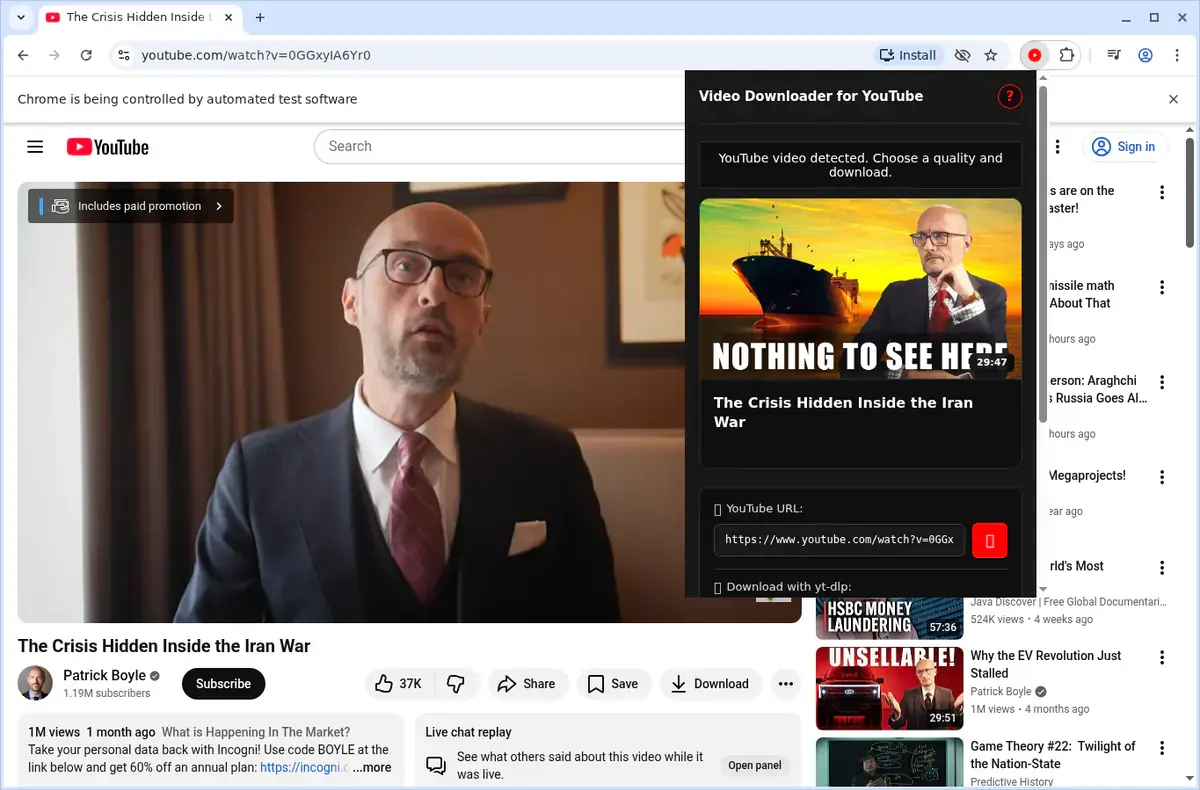
Open the individual YouTube watch page, press play, open the SERP YouTube Video Downloader, choose an available quality, and save the completed video through your browser.
For your own uploads, YouTube Studio’s built-in download is a good first choice.
The quick method
- Open the exact YouTube video.
- Press play and wait for the picture.
- Open the extension.
- Confirm the title and thumbnail.
- Choose a quality and file type.
- Start the download.
- Keep the tab open until it completes.
- Open the saved file and check it.
Choose the right page
| YouTube page | Best starting point |
|---|---|
| Standard video | Individual watch page |
| Short | Open the selected Short by itself |
| Playlist | Open and review the playlist first |
| Embedded player | Use the containing page or open YouTube |
| Livestream | Wait for the finished replay |
| Your own upload | YouTube Studio download |
| Unlisted video | Use the complete link that plays |
A focused page makes the correct title and video easier to verify.
Choose a useful quality
Use 1080p for screen recordings, slides, and detailed footage when available. Use 720p for general offline watching and smaller files. Choose 4K only when the source offers it and you need the extra detail.
The extension cannot create a higher-quality copy than YouTube provides for the upload.
MP4 or WebM
Choose MP4 when compatibility is the priority. It is the easiest choice for common desktop players, presentations, phones, and many editors.
Choose WebM when the highest available YouTube option uses it and your playback or editing software supports it.
The MP4 versus WebM guide gives a simple compatibility comparison.
Let the file finish
High-quality YouTube downloads can take time, especially when the extension has to prepare picture and sound into one finished file. Keep the source tab open and watch the browser’s Downloads page.
Do not click the same download button repeatedly. That can create duplicate or incomplete jobs.
Check the downloaded video
Open the file before closing the YouTube page. Confirm:
- correct title and thumbnail;
- complete beginning;
- picture and sound;
- working seeking near the middle;
- complete ending;
- duration close to YouTube.
For a long video, test several points.
Download YouTube Shorts
Open one Short in its own page, press play, and use the extension. Vertical videos may have dimensions such as 1080 × 1920 rather than the usual horizontal shape.
See how to download YouTube Shorts for copy-link and quality steps.
Download a playlist
Review the list first, choose a preferred quality, and keep the original order in the filenames. The product can queue playlist videos, but unavailable or changed items may still need attention.
Use the YouTube playlist download guide for numbering and completeness checks.
Embedded and unlisted videos
For an embedded player, start on the page where it plays. If detection is unclear, open the original YouTube watch page.
For an unlisted video, use the complete link and confirm the intended title before downloading. Unlisted does not mean searchable, but the normal watch-page workflow is otherwise similar.
If no video appears
Reload the watch page, press play, reopen the extension, and close unrelated YouTube tabs. Test a short public video to separate an installation problem from a problem with one page.
The YouTube downloader troubleshooting guide covers missing buttons, stalled jobs, and files without sound.
Reliable download checklist
| Step | What to confirm |
|---|---|
| Page | Correct watch page or player |
| Playback | Video works in YouTube |
| Identity | Correct title and thumbnail |
| Quality | Useful available option |
| Progress | One clear download job |
| File | Complete picture, sound, and duration |
Start with one ordinary watch page in the SERP YouTube Video Downloader; once that file is verified, move to the Short, playlist, embed or replay you actually need.
Related products
Tools that directly support the workflow covered in this article.
Download YouTube videos entirely on your device with no telemetry—your viewing and download activity stays completely private.
Read more
View all posts →Jul 30, 2026
How to Download YouTube Videos With yt-dlp
Download YouTube videos with yt-dlp, use predictable filenames, limit quality, update the tool, and troubleshoot errors.
Read articleJul 30, 2026
How to Download Vimeo Videos From Any Page Type
Download Vimeo videos from public pages, private links, password-protected players, embeds, and review pages.
Read articleOct 23, 2025
How to Download TikTok Videos to Your Computer
Download TikTok videos on a PC or Mac with a browser extension that adds a download button directly to supported TikTok video posts.
Read article