How to Download TikTok Videos to Your Computer
Download TikTok videos on a PC or Mac with a browser extension that adds a download button directly to supported TikTok video posts.
To download a TikTok video to your computer, open the video in a supported desktop browser and use the download control added by the SERP TikTok Video Downloader. The extension saves the selected video as an MP4 through your browser’s normal download system.
You stay on TikTok throughout the process. There is no video link to copy into another website.
The quick method
- Install TikTok Video Downloader in Chrome, Edge, Firefox, Brave, or Opera.
- Open a standard TikTok video post.
- Let the video start playing.
- Click the download control shown on the video.
- Wait for the browser download to finish.
- Open the MP4 and check that it is the video you selected.
The extension works on Windows, macOS, and Linux desktop computers. It does not run inside the TikTok mobile app.
Open the right TikTok page
TikTok presents videos in several different layouts. Before downloading, make sure the selected video is visible and playing.
| Where you found the video | What to do |
|---|---|
| For You feed | Stop on the video you want and let it play |
| Following feed | Confirm the creator and caption before downloading |
| Creator profile | Open the individual video from the profile grid |
| Direct TikTok link | Let the video page finish loading |
| Signed-in post | Stay signed in with the account that can already play it |
| Slideshow or photo post | Do not continue; this downloader handles video posts only |
Opening the individual video page is the clearest option when several clips have similar thumbnails or captions.
For posts available only to the current account, follow How to Download Private TikTok Videos You Can View.
Activate the extension once
The first time you open TikTok Video Downloader, enter your email address and the verification code it sends you. Activation includes three free downloads and does not require a credit card.
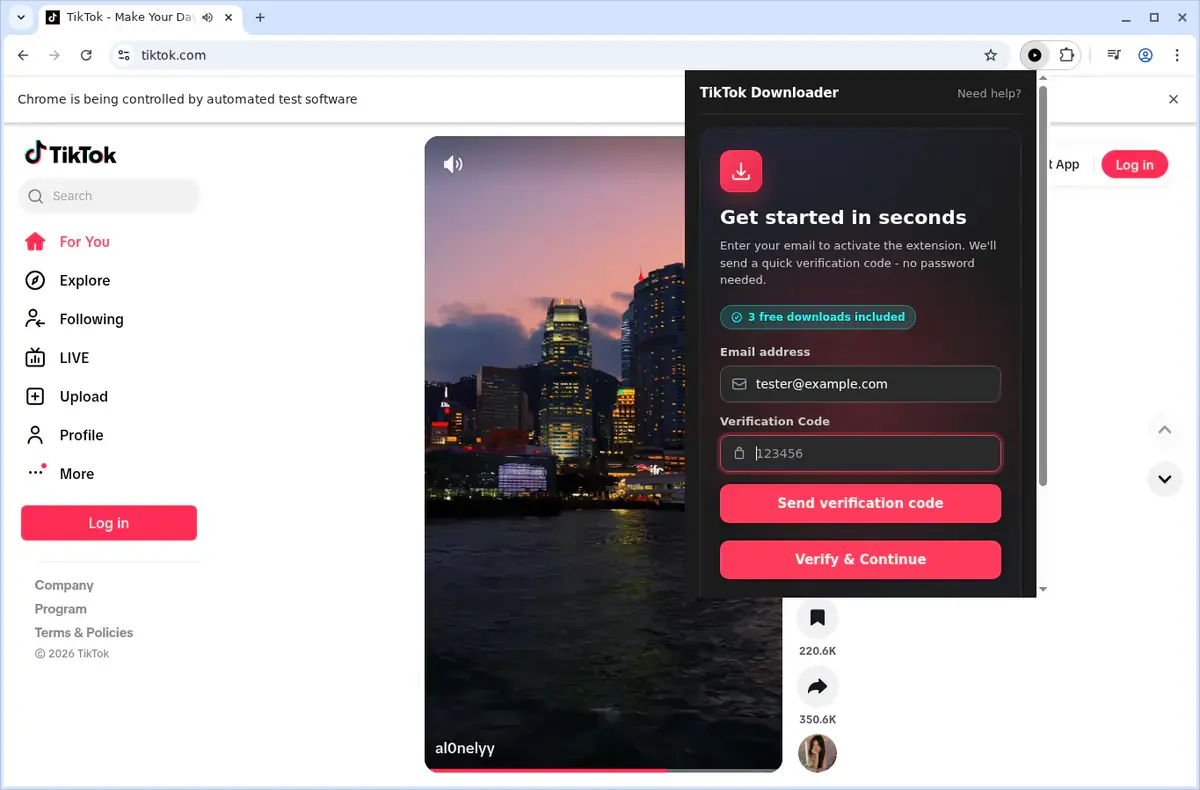
For the complete Chrome installation, pinning, and activation steps, use the TikTok Video Downloader Chrome extension setup guide.
After activation, reload any TikTok tabs that were already open. Pinning the extension to the browser toolbar also makes it easier to reach when a page control has not appeared yet.
Download the selected TikTok video
Play the video and look for the download control added to the TikTok page. Use the control attached to the video you actually want rather than clicking while the feed is moving.
You can also open the extension from the toolbar. Its settings let you show or hide the download controls placed on TikTok videos.
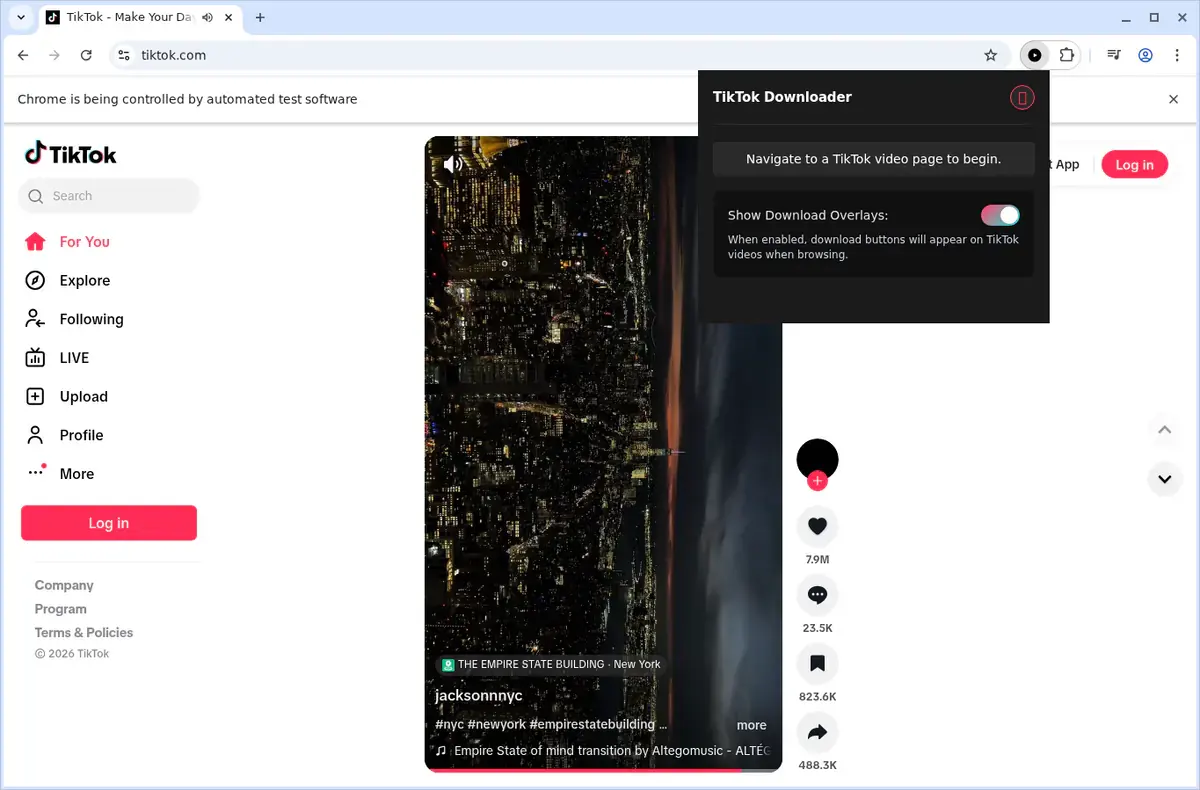
Once the download begins, follow it through your browser’s Downloads area. Keep the TikTok tab open until the file has finished saving.
Save videos from a feed or profile
TikTok’s feeds can replace the current video as soon as you scroll. Download one selected video before moving to the next:
- stop scrolling
- check the creator and caption
- let the video play
- start its download
- wait for that download to finish
- continue to the next video
The extension starts one download at a time. It is not a whole-profile or batch downloader, so it will not automatically collect every video from a creator page.
For a profile video, open the post from the profile grid before downloading. That gives the video its own page and reduces the chance of saving the wrong clip.
For a more detailed one-at-a-time routine, read How to Download TikTok Videos From Feeds and Profiles.
What file will you get?
Completed videos are saved as MP4 files in your browser’s normal Downloads area, inside a TikTok folder. Filenames use the creator handle and video ID so clips from different accounts are easier to tell apart.
The picture quality depends on the version TikTok provides to its desktop web player. The downloader saves that available MP4; it cannot create a higher resolution that TikTok did not provide.
The same rule applies to the TikTok watermark. If TikTok includes a watermark in the video it serves, the downloaded MP4 will include it. This extension does not remove watermarks.
For a closer look at the source limits and file checks, read TikTok Download Quality, MP4 Files, and Watermarks.
Open the finished file and check:
- the creator and video match what you selected
- the picture and sound play correctly
- the video reaches its ending
- the file is stored in the folder you expected
Fix common TikTok download problems
For a complete symptom-by-symptom diagnosis, use TikTok Downloader not working.
The download control does not appear
Reload the TikTok tab, play the video, and confirm that Show Download Overlays is enabled in the extension. If the extension was installed while TikTok was already open, that tab must be reloaded.
The extension says to open a TikTok video
Open an individual video post rather than a search page, empty profile section, or general TikTok homepage. Let the video start before opening the extension again.
The post contains photos instead of a video
TikTok slideshows and image-only posts are not supported by this video downloader. Choose a standard video post for the first test.
The wrong video starts downloading
Stop scrolling, open the intended clip on its own page, confirm the creator and caption, and start again from that page.
A signed-in video does not work
Check that the same TikTok account can still play the video in the current browser tab. The extension cannot recover deleted posts or open content that the account cannot view.
The browser download fails
Keep the TikTok tab open, reload the post, play the video again, and start one fresh download. Do not begin several TikTok downloads at the same time.
Start with one normal video
The cleanest first test is one short, standard TikTok video on its own page. Play it, use the download control, wait for the browser to finish, and open the resulting MP4.
Once that succeeds, use the SERP TikTok Video Downloader on one video from your For You feed or a creator profile. Keep the process one video at a time so every saved file is easy to verify.
If you are still deciding between a browser button, a paste-link website, and a terminal tool, compare the browser, website, and command-line methods.
Related products
Tools that directly support the workflow covered in this article.
Save TikTok videos directly to your computer without ever leaving the platform or copying links.
Read more
View all posts →Jul 30, 2026
How to Download YouTube Videos to Your Computer
Download YouTube videos from the watch page, choose an available quality, and save the completed file to your computer.
Read articleJul 30, 2026
How to Download a Password-Protected Vimeo Video
Download a password-protected Vimeo video after unlocking it in the player, choosing a quality, and verifying the file.
Read articleJul 30, 2026
How to Download Vimeo Videos From Any Page Type
Download Vimeo videos from public pages, private links, password-protected players, embeds, and review pages.
Read article