01
Install the extension
Add Cyberdrop Downloader to your desktop browser and pin it to the toolbar.
Save every video in a Cyberdrop album in one run, or a single Cyberdrop video, from your browser.
Cyberdrop gives each file its own download button, but an album has no button to save everything in it. Cyberdrop Downloader adds one. Open an album on cyberdrop.cr and click Download all videos. The extension reads the album's file list, saves every video in it and puts them in a Cyberdrop folder in your Downloads, each named the way it is on Cyberdrop.
We tested it without a Cyberdrop account. On a public 3-video album it listed all 3 files and saved all 3 videos complete, byte for byte as they are stored on Cyberdrop, with no re-encoding. That test started Download all directly from our test tool, so we have not yet seen the button on a live album; if it doesn't appear for you, pick the videos one at a time in the extension popup. Images, archives and other files in an album are skipped, so you only get the videos. You can also open a single file page (cyberdrop.cr/f/...) and save that video from the extension icon; in our test it saved a complete 1080p MP4, exactly the size Cyberdrop lists, that plays from start to finish.
Use it for files you uploaded yourself or that you have permission to save. It works in desktop Chrome, Edge, Brave, Opera, Whale and Yandex on Windows, macOS and Linux. Downloads go straight from Cyberdrop to your computer and never pass through our servers. Try it with 3 free downloads a week, no credit card needed.

Secure checkout. Start downloading in minutes.
Private downloads that stay on your device.
Email support, answered by the people who built it.
Part of the SERP Apps Extensions Library.
Open the page, let the extension detect what is available, and save the file to your computer.
Add Cyberdrop Downloader to your desktop browser and pin it to the toolbar.
Go to the album (cyberdrop.cr/a/...) or the single file page (cyberdrop.cr/f/...) and let it load.
On an album, click Download all videos in the panel at the bottom-right of the page, or pick one video at a time in the extension popup. On a file page, click the extension icon, then Download Video. Keep the tab open until every download has started.
Core capabilities included in Cyberdrop Downloader.
Adds a Download all videos button to Cyberdrop album pages (cyberdrop.cr/a/...) (button not yet verified on a live album)
Reads the album's file list and tells you how many of the files are videos
Downloads every video in the album in one run
Saves each video complete and unchanged, exactly as it is stored on Cyberdrop, with no re-encoding
Names each album video the way it is named on Cyberdrop
Saves everything into a Cyberdrop folder in your Downloads
Skips images, archives and other non-video files in an album
Lets you pick one video from an album in the extension popup and save just that one
Saves the video from a single Cyberdrop file page (cyberdrop.cr/f/...)
Works without a Cyberdrop account on public albums and files
Downloads go straight from Cyberdrop to your computer, never through our servers
Works in Chrome, Edge, Brave, Opera, Whale and Yandex on Windows, macOS and Linux
Available on major desktop browsers and operating systems used in day-to-day workflows.
Pick the browser build you need. When a direct GitHub release is available, you can grab the ZIP there.
After you get access, sign in to your account to download and install it in Chrome.
After you get access, sign in to your account to download and install it in Edge.
After you get access, sign in to your account to download and install it in Opera.
After you get access, sign in to your account to download and install it in Brave.
After you get access, sign in to your account to download and install it in Whale.
After you get access, sign in to your account to download and install it in Yandex.
Install from GitHub releases or your user dashboard. ZIP builds include the full desktop extension.
Every requested permission and the job it performs inside the extension.
Saves the files you choose through the browser download flow.
Checks the selected tab after you start a download.
Stores activation, trial, and local preference state.
Shows download status messages.
Adds the download action to the browser's right-click menu.
Coordinates popup, background, and page messaging for the selected browser tab.
Injects lightweight page checks and download controls when the extension is used.
Runs video processing in an offscreen document so downloads can finish in the browser.
Detects the media requests the page makes so the video can be found.
Applies request rules needed to download from the supported hosts.
Allows video detection on Cyberdrop pages and related host patterns.
Better to know the boundaries up front than find out after checkout.
Only videos are downloaded; images, archives and other files are skipped
An album run covers the files listed on the album page, up to 500
Album videos start two at a time; keep the tab open until the last one has started
If Cyberdrop limits requests, the album run stops instead of retrying
Private or deleted files can't be saved
Firefox, Safari and mobile browsers are not supported
TikTok videos always contain both audio and video in a single MP4 file, but sometimes you just want the audio track — to save music, quotes, or background sounds.
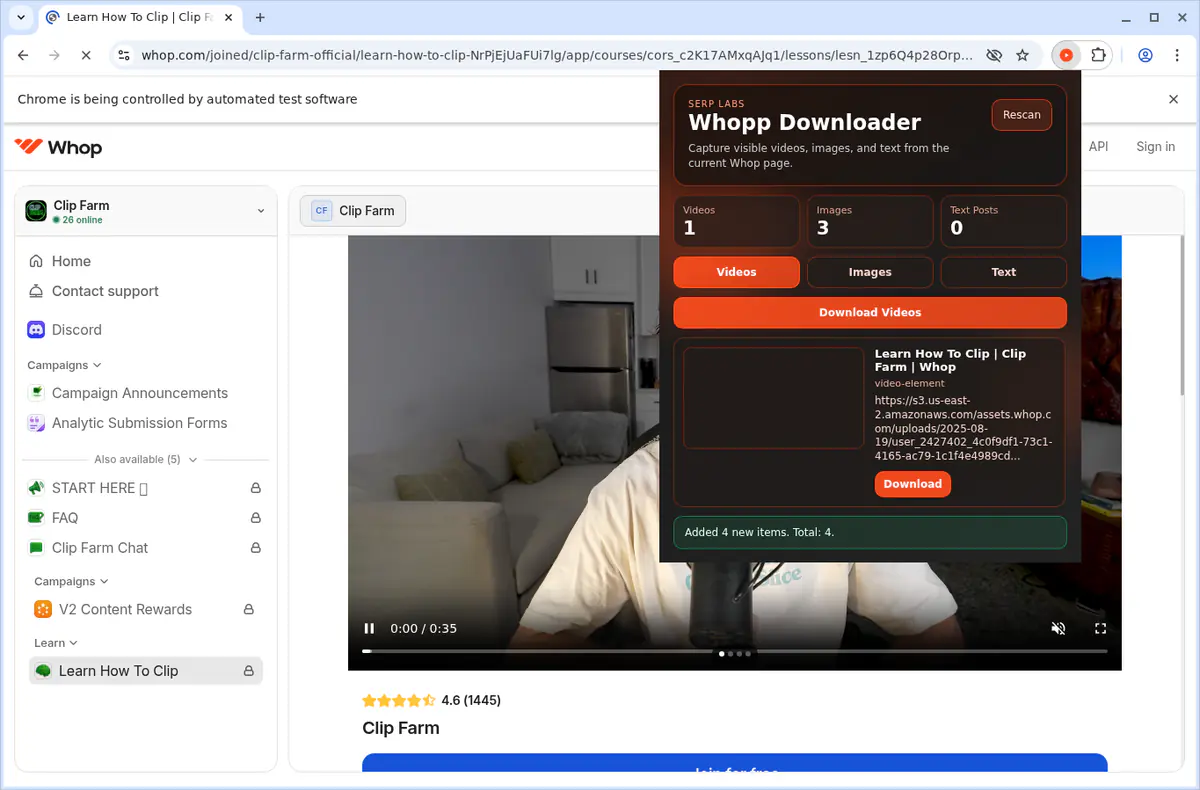
Learn how to save a video from a Whop course or community page using the video already loaded in your signed-in browser session.

Save a Skool course lesson by lesson, preserve its module order, manage three downloads at a time, and verify the offline collection.
Keep exploring
Browse every category we support and jump directly into the tools that match your workflow.
23 categories are currently available.
Immediate Access
Product access begins after a successful checkout
Setup Guidance
Installation steps are provided for the supported package
Billing Shown Upfront
Review the selected billing interval before checkout
Save a whole album of videos without opening and clicking every file
Keep your own copy of files you uploaded or were sent, in case the link stops working
Watch offline, without the buffering that slow file-host streams can cause
No Python, terminal or pasting links into download websites